


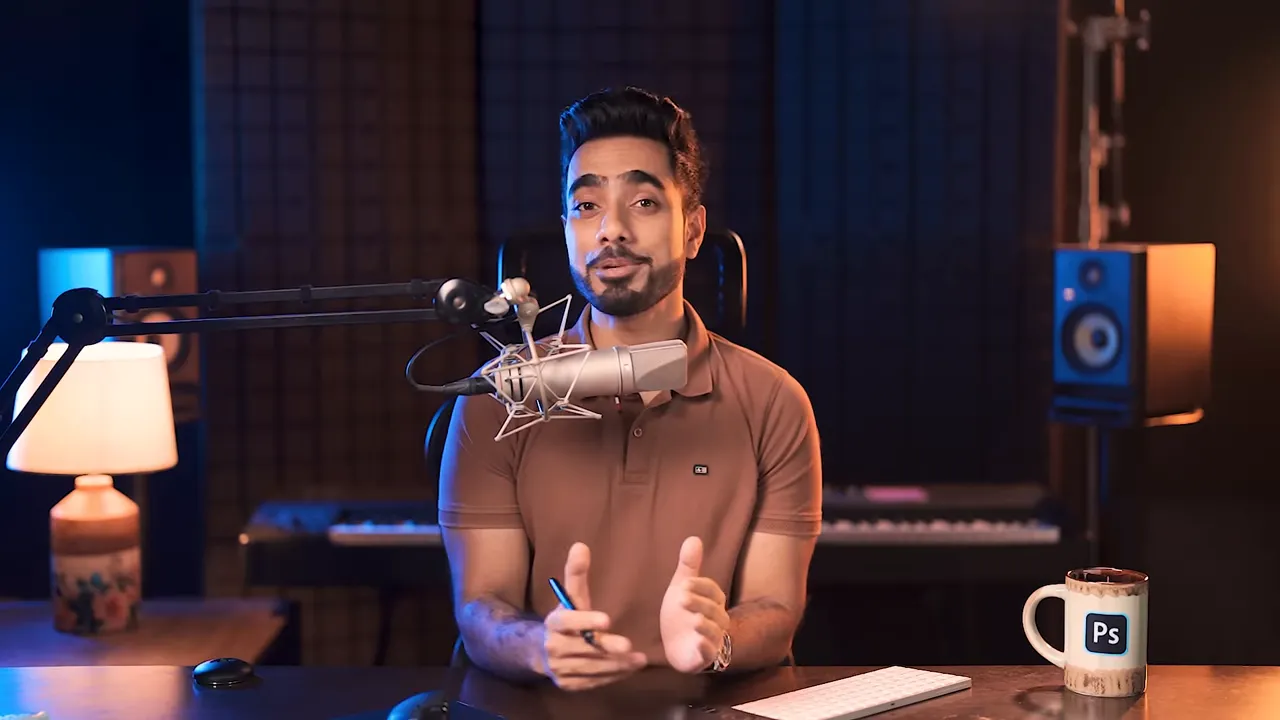
Unmesh Dinda of PiXimperfect walks through the arrival of Nano Banana (Gemini 2.5) inside Photoshop and demonstrates 50+ practical, creative and surprising ways to use it. This article distills his demo into an easy-to-follow guide: how to access the feature, the major advantages of using Nano Banana in Photoshop, concrete workflows (with tips and workarounds), limitations to watch for, and a handful of inspiring example use cases.
Return to the PiXimperfect channel
Quick setup — how to try Nano Banana in Photoshop
Nano Banana is available in the Photoshop beta (not the regular release). To try it:
- Open the Creative Cloud desktop app.
- Go to Apps > Beta apps, then install Photoshop Beta.
- Look for Generative Fill in the contextual taskbar and select the Nano Banana (Gemini 2.5) model when prompted.
Why Photoshop + Nano Banana matters
Using Nano Banana inside Photoshop brings two major advantages compared to running it in a separate app:
- Resolution-focused edits: By selecting smaller areas, Nano Banana produces sharper localized results than feeding the whole image at once.
- Layer and mask workflow: Photoshop’s layers and masks let you keep, refine or blend AI edits non-destructively—ideal when you want to change an outfit, fix teeth, or add jewelry on separate layers.
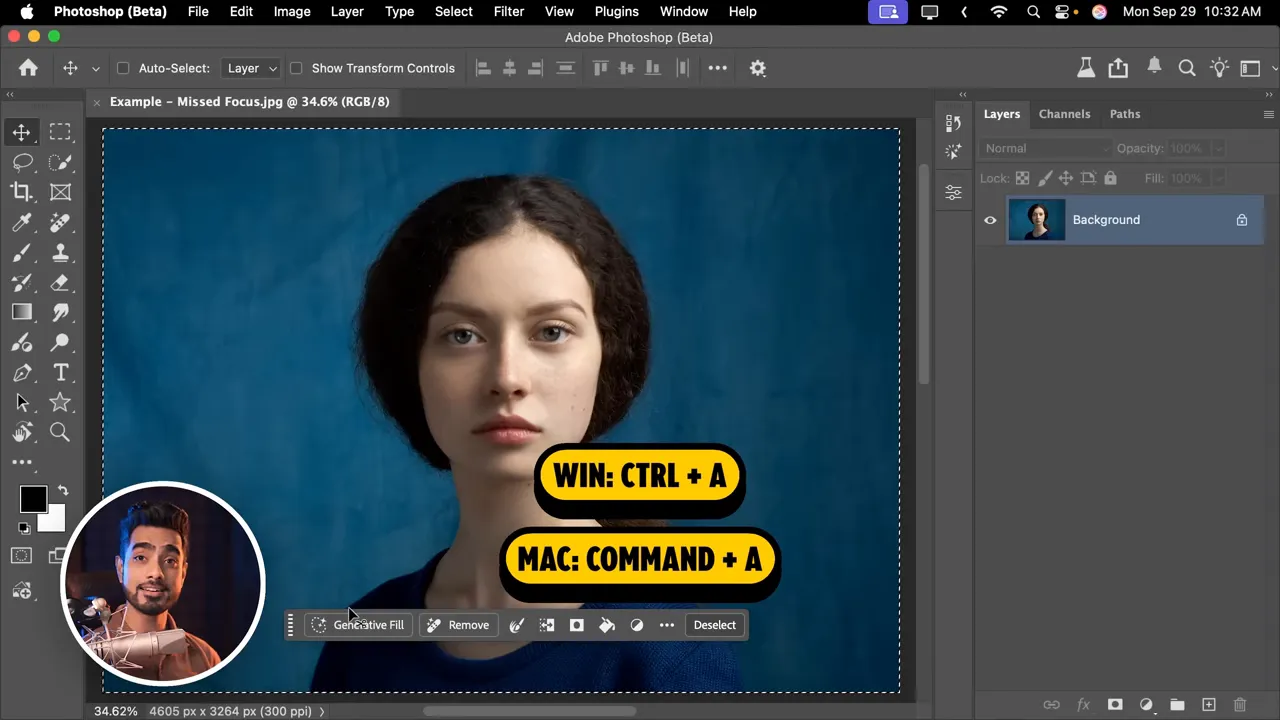
Example: when the subject’s eyes were blurry but hair was sharp, selecting just the eye area and running Generative Fill with “Restore and sharpen this blurry photo and add details” produced a dramatically improved result compared to processing the entire image.
Practical tip: fix harsh edges
Nano Banana sometimes creates hard edges where the generation meets the original image. The solution is classic Photoshop: feather selections or refine the layer mask with a soft round brush (paint with black to hide and white to reveal) to blend the edit.
Recovering lost details and restoration
Nano Banana excels at restoring missing texture and adding plausible details when selected thoughtfully.
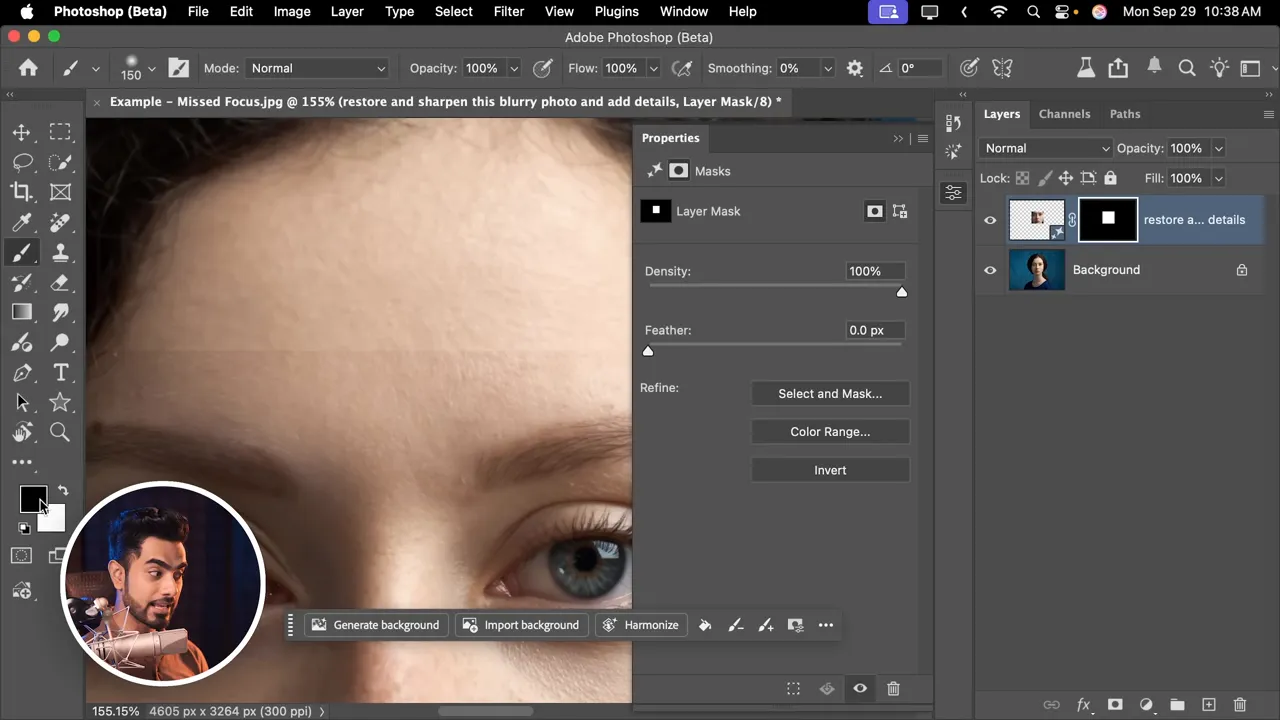
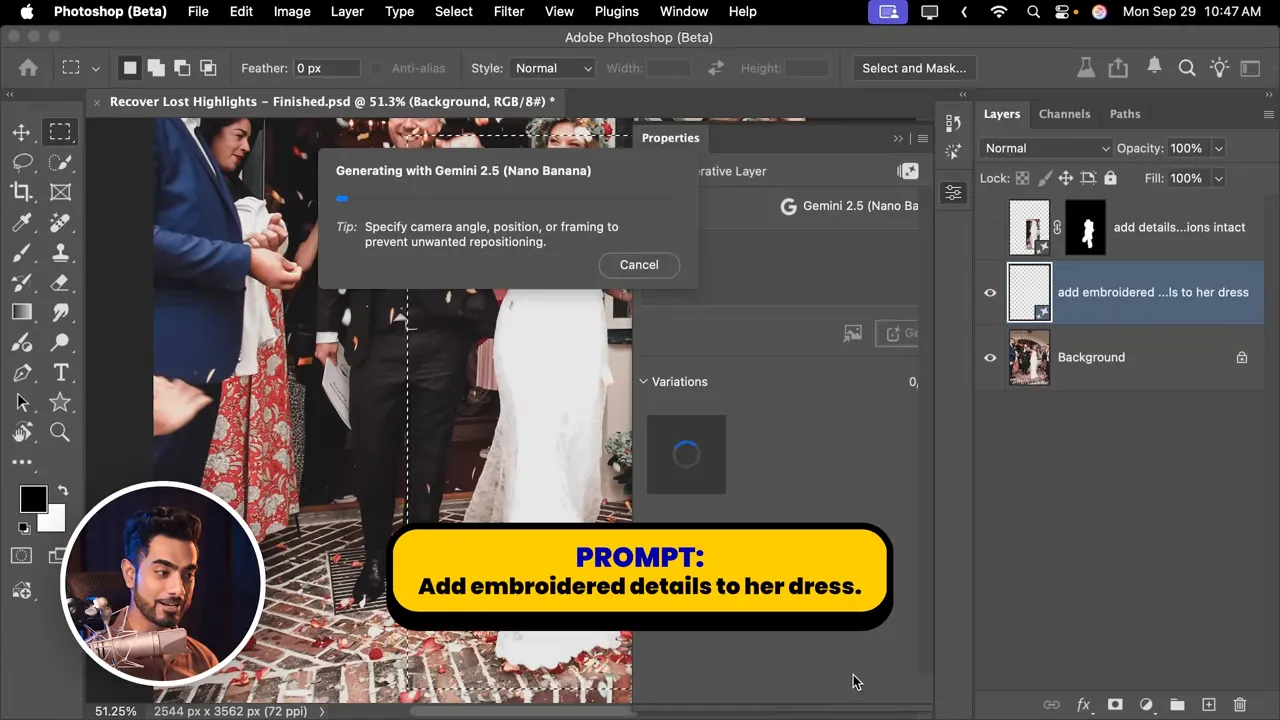
- Recover intricate dress details: Select the dress (rectangular marquee often works best because generations are rectangular) and use a prompt like “Add embroidered details to her dress”. Blend the generated layer with masks as needed.
- Full-image restoration: Select the whole image (Ctrl/Cmd + A), run Generative Fill with a restoration prompt, and try multiple generations to pick the best result. Unmesh shares several variations and the prompts in his downloadable PDF.
- High-res face detail: After a full-image restore, draw a new selection around the face and run another “Restore and sharpen this blurry photo and add details” pass to regenerate facial detail at a higher apparent quality.
Colorization and lighting fixes
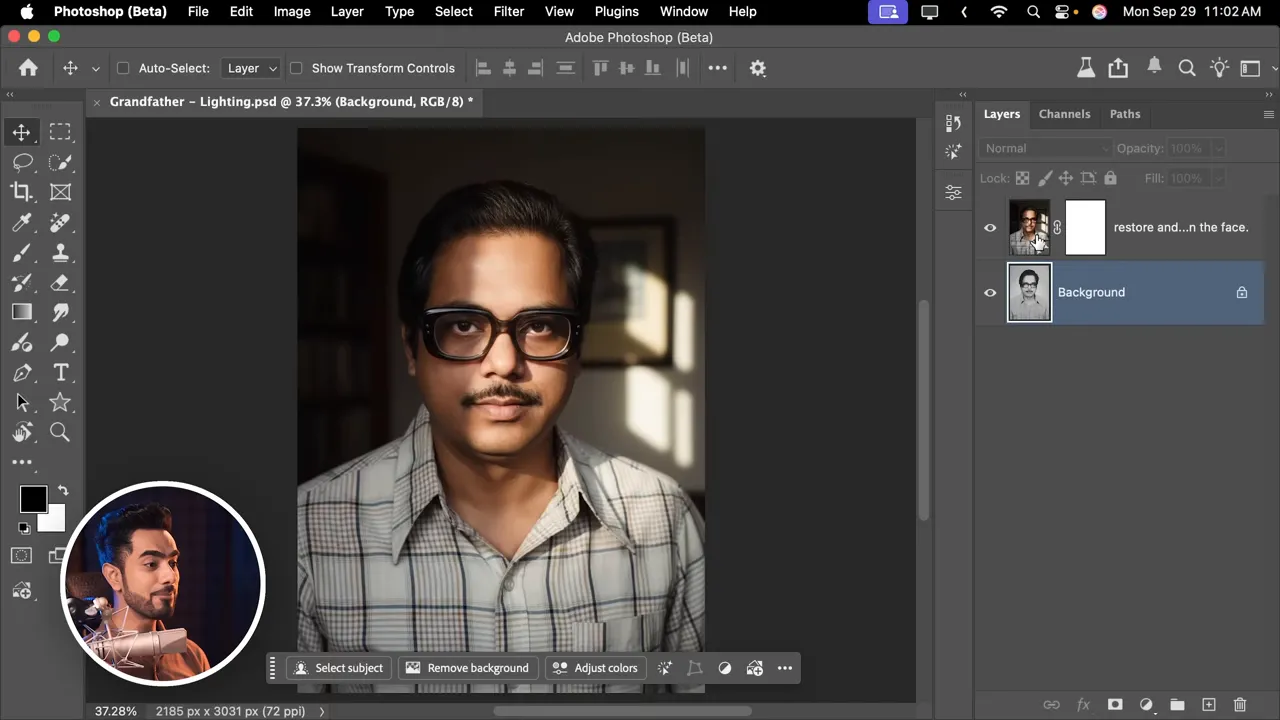
Nano Banana can restore, colorize and relight photos. For example, the speaker restored an old photo of his grandfather using a prompt like “Restore and color this photo and change the background to a dark interior” and then refined lighting descriptors (“change the lighting to warm rim light” etc.) to achieve different variations.
Removing shadows, crowds and impossible distractions
Nano Banana makes some edits that were previously tedious or nearly impossible:
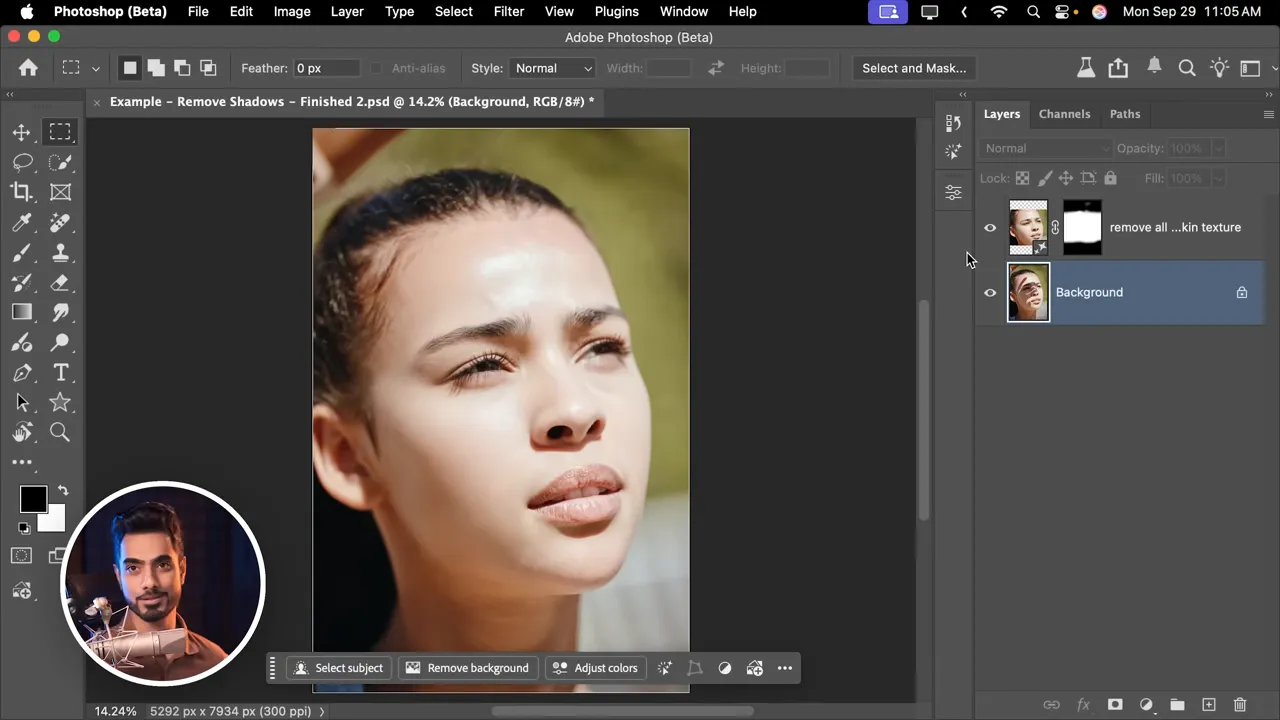
- Remove facial shadows quickly: A prompt like “remove all shadows from the face and add some skin texture” can replace a 15-minute manual dodge-and-burn workflow with one click—then refine with masks.
- Remove crowds and scaffolding: Selecting the entire image and prompting “remove all scaffolding” or “remove the fence” yields surprisingly believable fills. Be prepared to try several generations and to upscale or sharpen the subject afterward.
Pose, head direction, and annotations
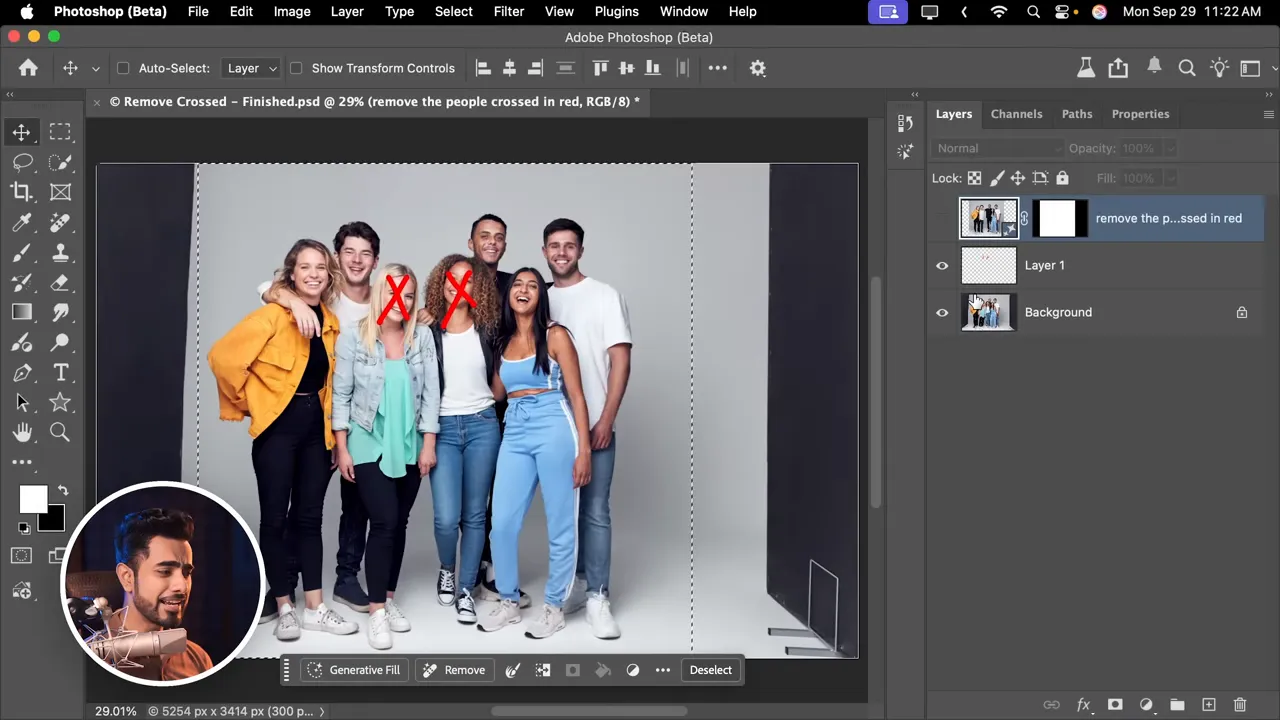
Nano Banana works remarkably well with annotations. It understands red-cross marks and other simple visual annotations on-screen.
- Remove people crossed out in red: Mark people, select the area and instruct “remove the people crossed in red.”
- Change gaze or pose: Use prompts like “make her look towards the camera” or “make this man pose like a ballerina in the exact same outfit wearing sneakers” (adding constraints avoids unwanted costume changes).
- Photo-completion with annotations: Add a photo (e.g., a person to pose with) as part of the canvas, annotate “make this man pose with the man on the left,” then select all and run “Complete the prompts in this image.”
Expanding images and the red-fill trick
Gemini in Photoshop isn’t optimized for full image expansion, but a useful trick is to fill the new areas with a distinct color (e.g., red), then tell Nano Banana to “fill the red area.” It’s a workable hack for scene completion—expect a resolution hit and plan to mask/blend.
Creative transformations: painting, camera angle, and style
Nano Banana can convert photos into stylistic results while preserving subject likeness:
- Turn a portrait into an oil painting with heavy brush strokes and an optional abstract background.
- Change camera angle (e.g., “bird’s eye view”)—the subject and props generally remain recognizable but you may need to correct artifacts.
- Stylize to historical film looks by asking for “taken with a film camera from the 1950s” or even “transform this photo to look as if it was taken in the 1800s.” Multiple attempts give different film-era flavors.
Text and logos, product mockups, and product photos
Nano Banana often preserves typography style when replacing real-world text. It also helps ideate product photography and mockups from simple logo assets:
- Change real-world signage text while maintaining metallic or embossed finishes.
- Place a logo on objects (soda cans, bottles) with descriptive prompts like “levitating above a burst of splashing clear water” for dramatic mockups.
- Turn phone snaps into professional product shots: select the subject, prompt “turn this photo into a professional product photoshoot with a white background”, and iterate.
Changing colors, finishes, seasons, weather, and age
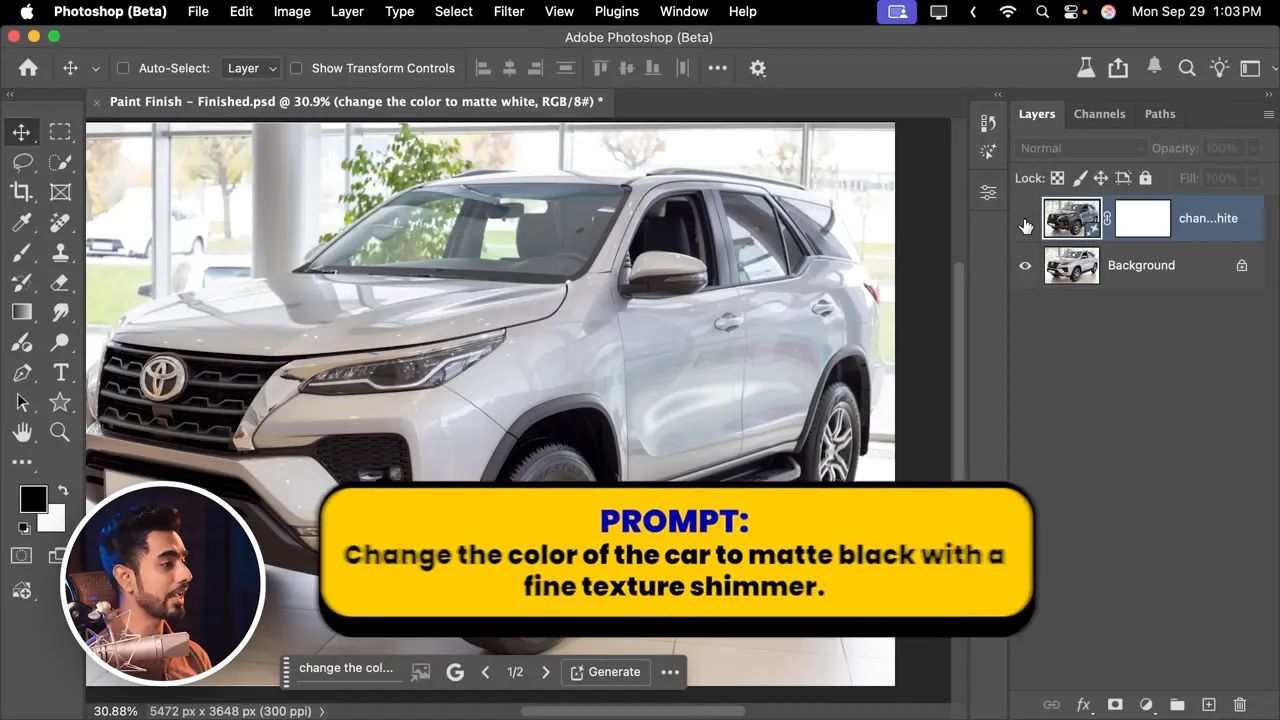
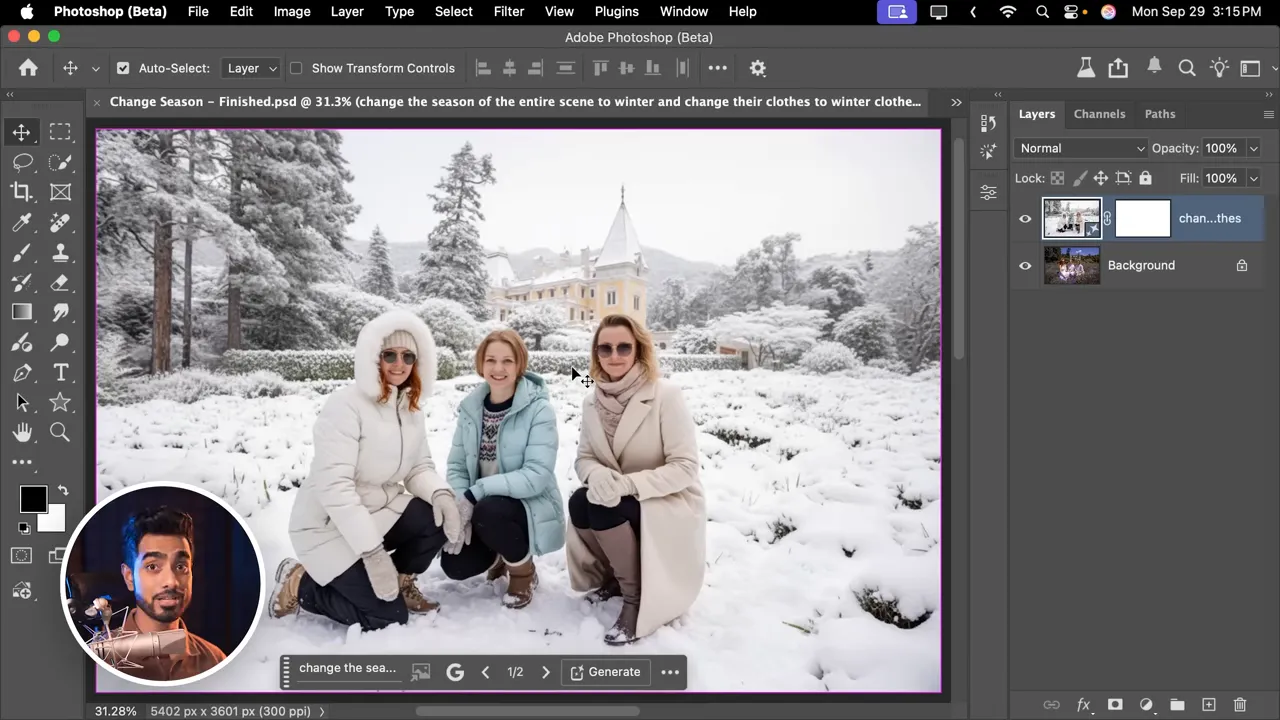
Use clear, descriptive prompts to change color or surface finish (“change the color of the car to matte black”). For scene-level changes, include clothing and environmental tweaks: “change the season to winter and change their clothes to winter clothes.”
To add rain or a weather change, the prompt must account for secondary effects: clouds, umbrellas, fewer pedestrians, wet surfaces, reflections, and so on. For aging, simple prompts like “increase his age by 50 years” produce plausible aged results (test and iterate).
Real estate visualization and quick remodeling
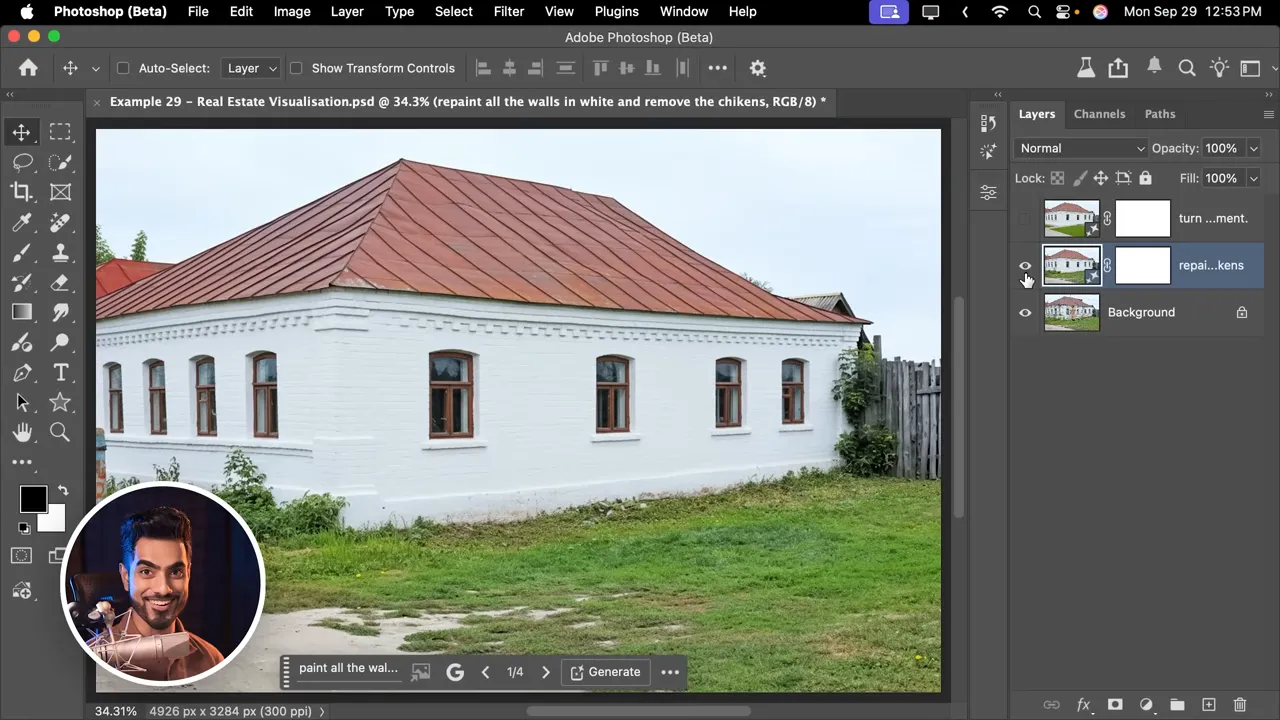
Nano Banana is a fast ideation tool for property flips: “repair the paint, remove the chickens, mow the lawn, repair the roof” can transform a neglected house into a market-ready visualization in minutes. Multiple tries are usually needed to finalize the details.
Fun, illustrative, and design uses
Other creative use cases covered include:
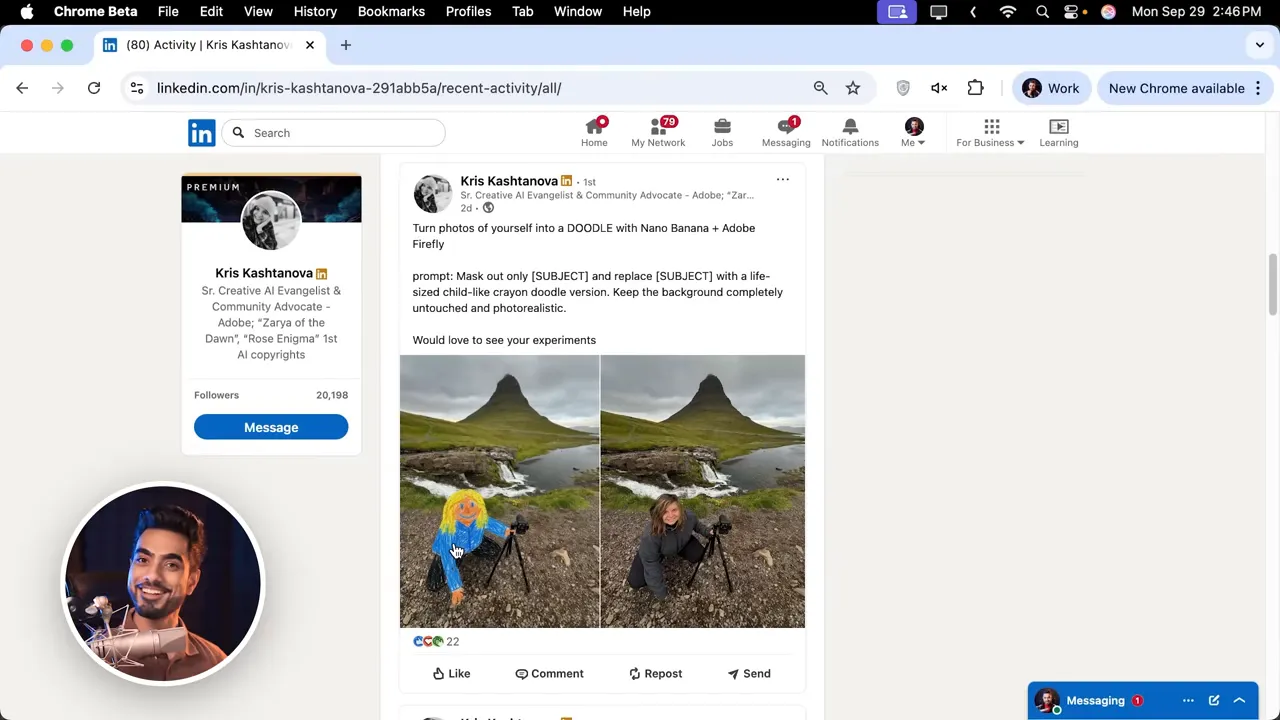
- Transform parts of an image into a doodle or combine collage items into a single modeled outfit.
- Create simplified outline drawings suitable for coloring books.
- Use annotations to plan interior design changes: “paint the wall dark gray,” “place a painting here,” “turn on this light” and then run “complete the prompts in this image.”
Change expressions — with caveats
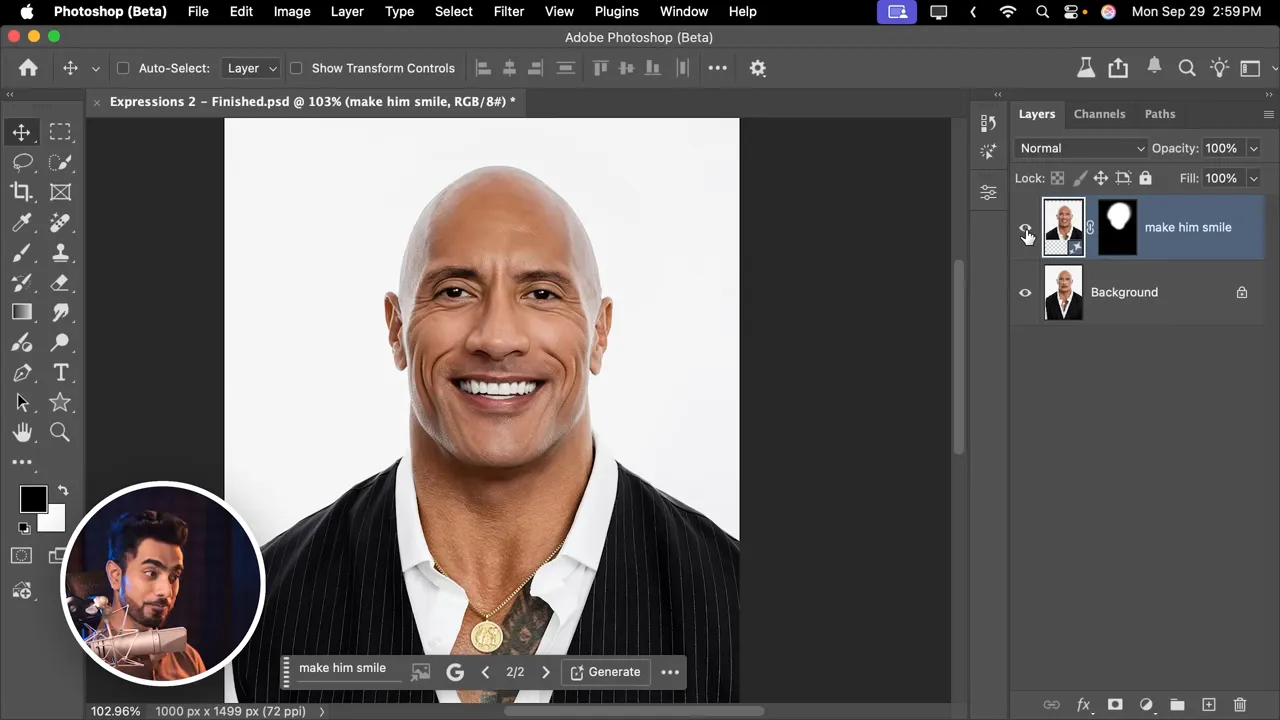
Changing a neutral expression into a smile is possible: the model will generate a plausible smile but it may not reflect the subject’s true muscle movement. Testing with well-known faces (e.g., Dwayne Johnson) can give a sense of how close the result might be.
Credits, limits, and the current promo period
At the time of the demo, Nano Banana usage in Photoshop Beta provided complimentary access (no credits deducted), but limits exist and are somewhat opaque. Reports mentioned daily allowances (e.g., 500 per day for some plans; 100 per day for single-app or photography plans). After the promo ends (Adobe indicated a potential date around October 28 in that demonstration), generations will consume generative credits—how many per generation is still unclear.
Adobe’s generative credits FAQ: https://helpx.adobe.com/in/creative-cloud/apps/generative-ai/generative-credits-faq.html
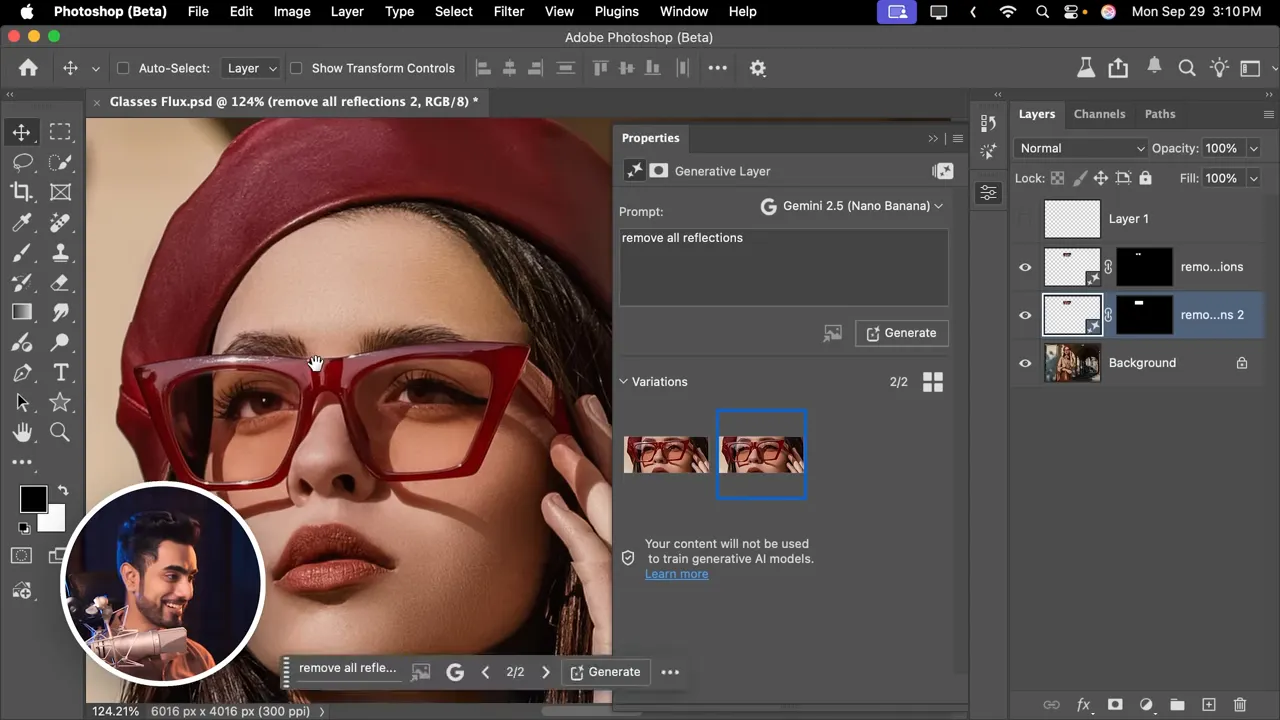
Flux Kontext Pro vs Gemini (when to switch)
Unmesh shows cases where Flux Kontext Pro outperformed Gemini/Nano Banana—examples include removing reflections from eyeglasses and changing text more reliably. Workflow suggestion: if Gemini struggles with a specific task (e.g., removing glare or preserving metallic text finish), try Flux Kontext Pro as an alternative model choice in the model picker.
Known limitations and workarounds
- Resolution limitations: Generations can be blurrier than the original image. Workarounds include: selecting smaller areas, running additional localized generations for faces or badges, or using dedicated upscalers (Topaz, Gigapixel-style tools) post-process.
- Shifted generations: Sometimes the generated area shifts slightly relative to the selection—masking and careful blending are necessary.
- Single-generation blocking: Photoshop’s Generative Fill generates one output at a time and you must wait for it to finish before requesting another. Plan iterations accordingly.
- No direct reference image support (yet): You cannot currently upload a reference image directly into the Nano Banana prompt inside Photoshop. A workaround is to place the reference image on the canvas and annotate it, then run “complete the prompts in this image.”
More prompts and examples from Google
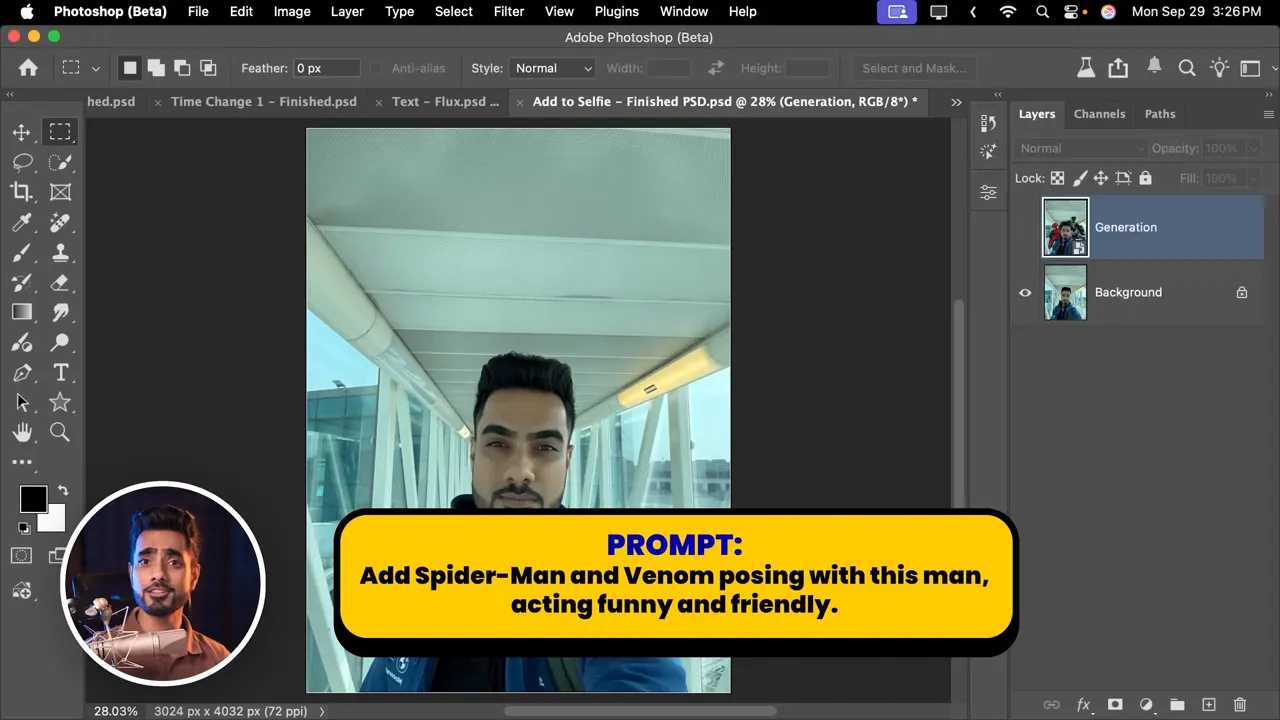
Google’s Nano Banana pages include many ready-to-use prompts: pet-of-your-dreams mockups, haircuts previews, profile photo transformations, and playful examples like adding Spider-Man and Venom to a selfie. These are great for experimentation and learning how to phrase prompts for predictable results.
Final notes, resources and the free gift
This workflow is a huge leap for image editing and creative ideation, but it works best when paired with solid Photoshop fundamentals (masking, blending, selective sharpening). For those who want structured learning, PiXimperfect Pro offers an updated Photoshop curriculum that includes AI lessons.
Downloadable resources mentioned:
- Prompt PDF (free): https://pix.live/nanoprompts
- Photoshop with Nano Banana trial link: https://pix.live/photoshop
- PiXimperfect Pro course: https://pix.live/pro

Conclusion
Nano Banana inside Photoshop opens a vast range of practical and creative possibilities—from restoration and retouching to complete scene transformations and product ideation. The key takeaways are:
- Select small areas when you need detail (faces, badges) to avoid resolution loss.
- Use Photoshop layers and masks to blend and non-destructively refine AI output.
- Try Flux Kontext Pro when Gemini struggles with reflections or text.
- Expect to iterate: multiple generations, masking, and upscaling are often required for production-ready results.
Explore, iterate, and pair AI edits with classic Photoshop techniques for the best outcomes. Share which experiment from this list was the most useful or surprising!

Be the first to comment